Testing & Live Mode for Evaluations
Last updated: March 6, 2026
Evaluations now have two lifecycle modes: Testing and Live. These are new concepts in Solidroad — Testing mode lets you safely calibrate a new evaluation before it affects your reports, and Live mode is when your evaluation is running for real and producing results that appear in QA reporting.
Your QA team can review AI scoring, mark results as correct or incorrect, and refine your scorecard criteria in Testing mode — all completely isolated from live reporting data.
Why use Testing mode?
When you create an evaluation, the AI scores conversations using your scorecard's sections, descriptions, and score ranges. Small differences in how criteria are worded can significantly shift results. Testing mode gives you a safe environment to iterate on your scorecard until the AI's scoring consistently matches your team's expectations — before any of it touches your live reports.
How it works
1. Create an evaluation with testing enabled
When setting up a new evaluation, complete your standard configuration (data source, scorecard, filters, agent selection), then navigate to the Testing section and toggle Testing on.
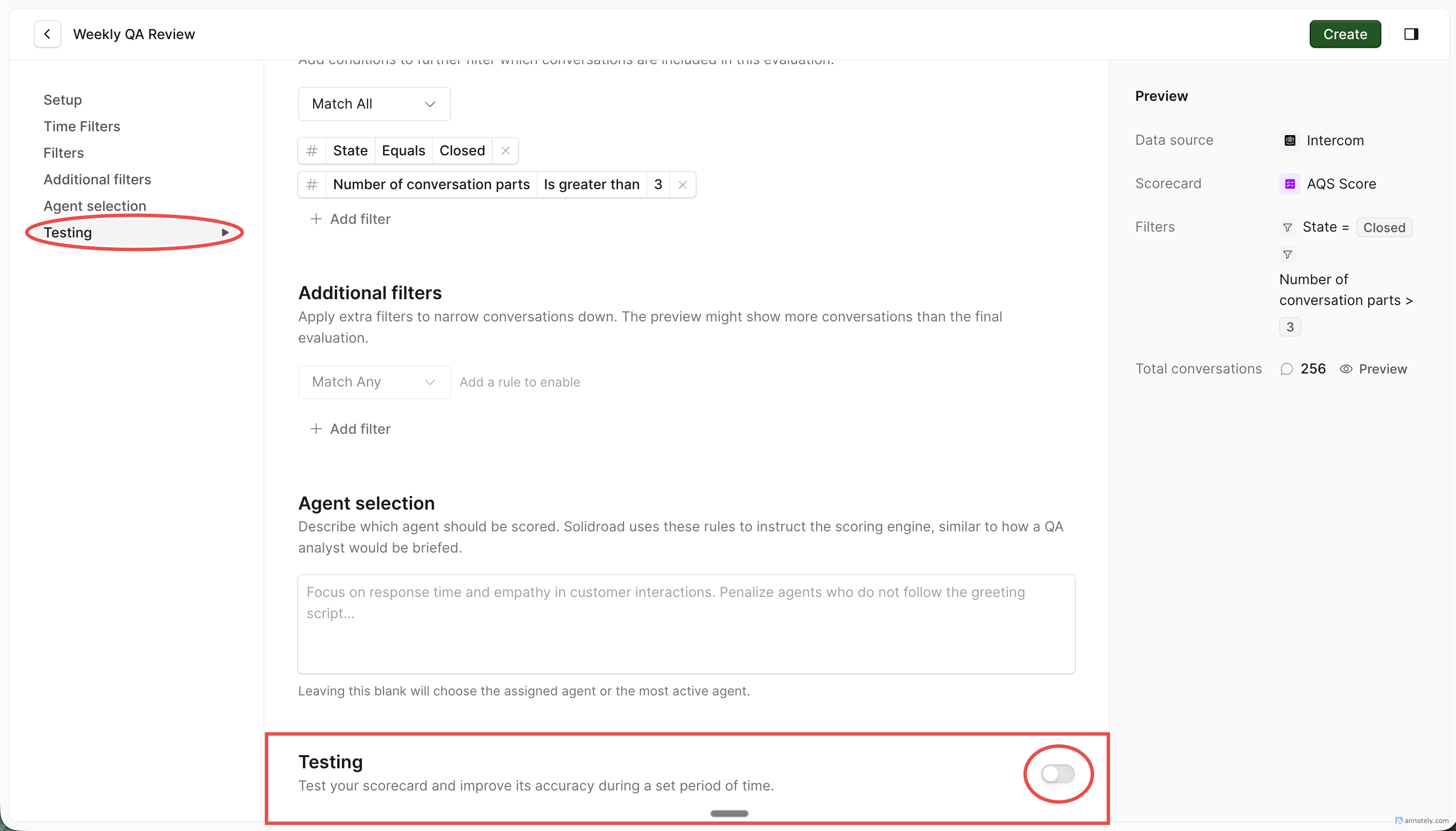
Configure the following:
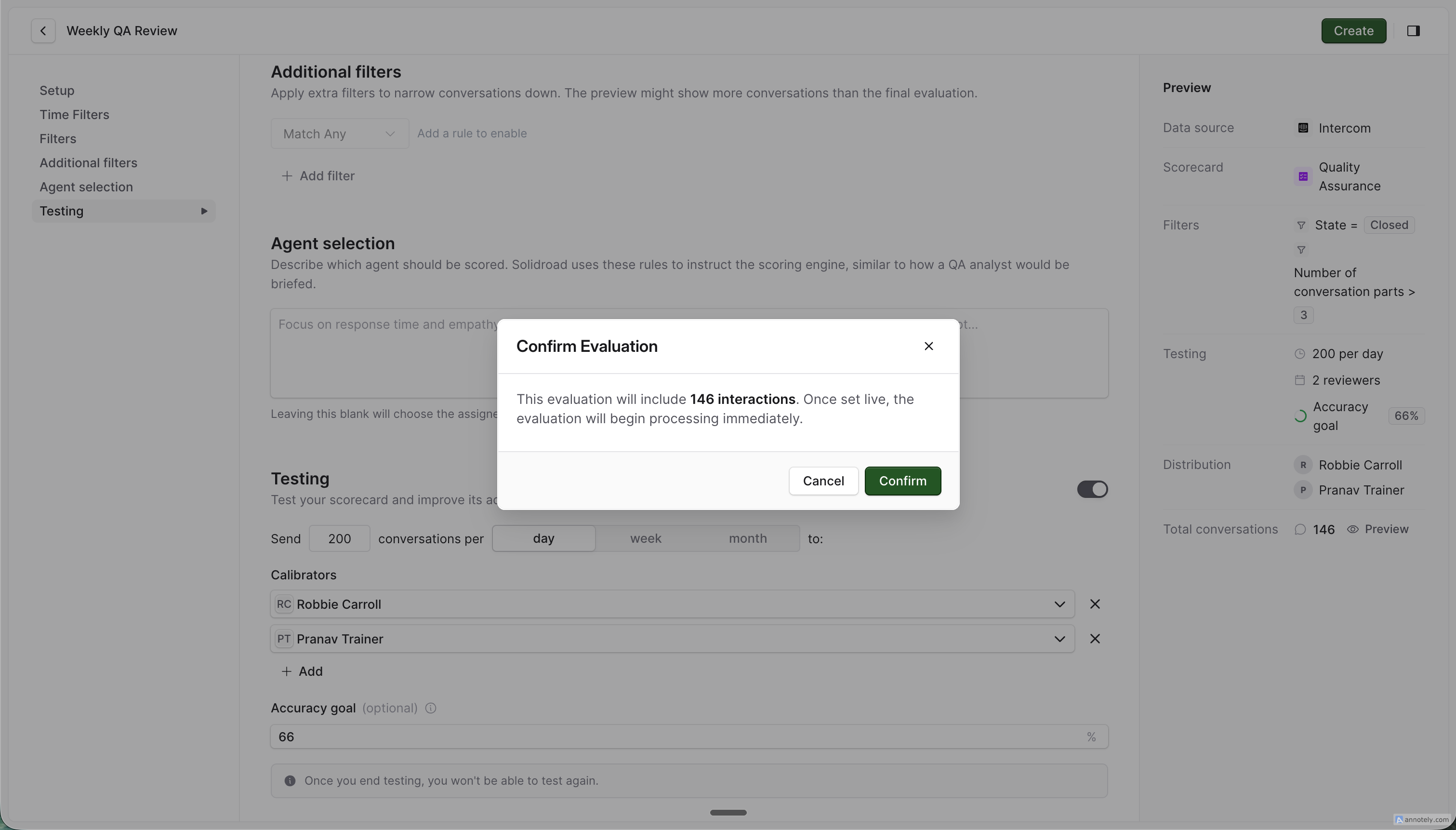
Conversations per period — how many conversations to send to QAs for calibration (e.g. 5 per day, 10 per week)
Calibrators — which QA team members will review and calibrate the AI's scoring
Accuracy goal (optional) — a target percentage to track progress toward (e.g. 85%)
⚠ Testing mode can only be enabled when creating a new evaluation. It cannot be added to an existing live evaluation. If you need to recalibrate a live evaluation, duplicate it and enable testing on the new copy.

Click Create and Confirm to save your evaluation in Testing mode.
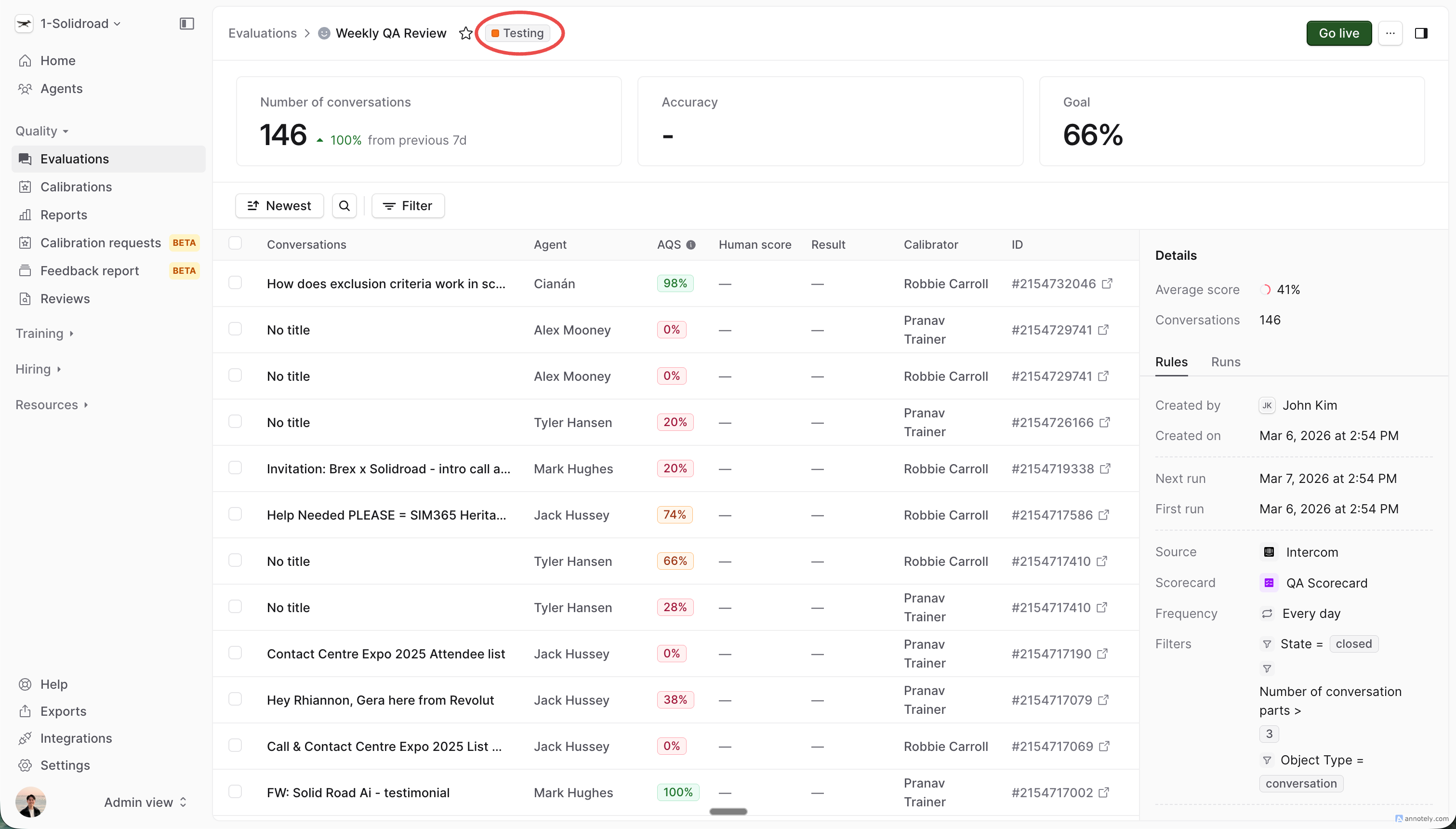
2. The system begins running and generating calibration tasks
Once created, the evaluation immediately starts:
Running on incoming conversation batches
Generating calibration tasks for assigned QAs at your configured frequency (daily, weekly, or monthly)
Accuracy metric is unavailable because no calibrations have been submitted
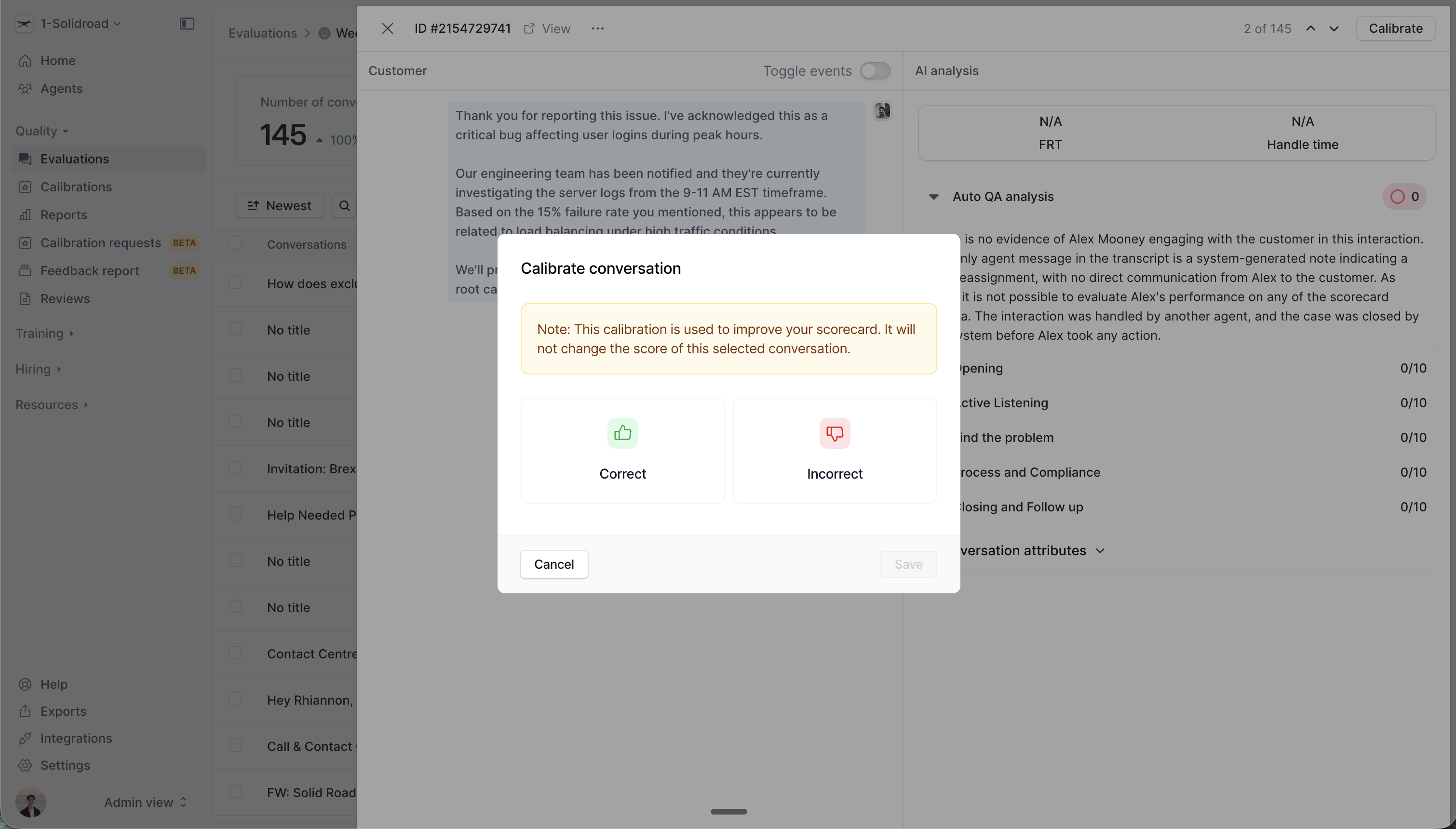
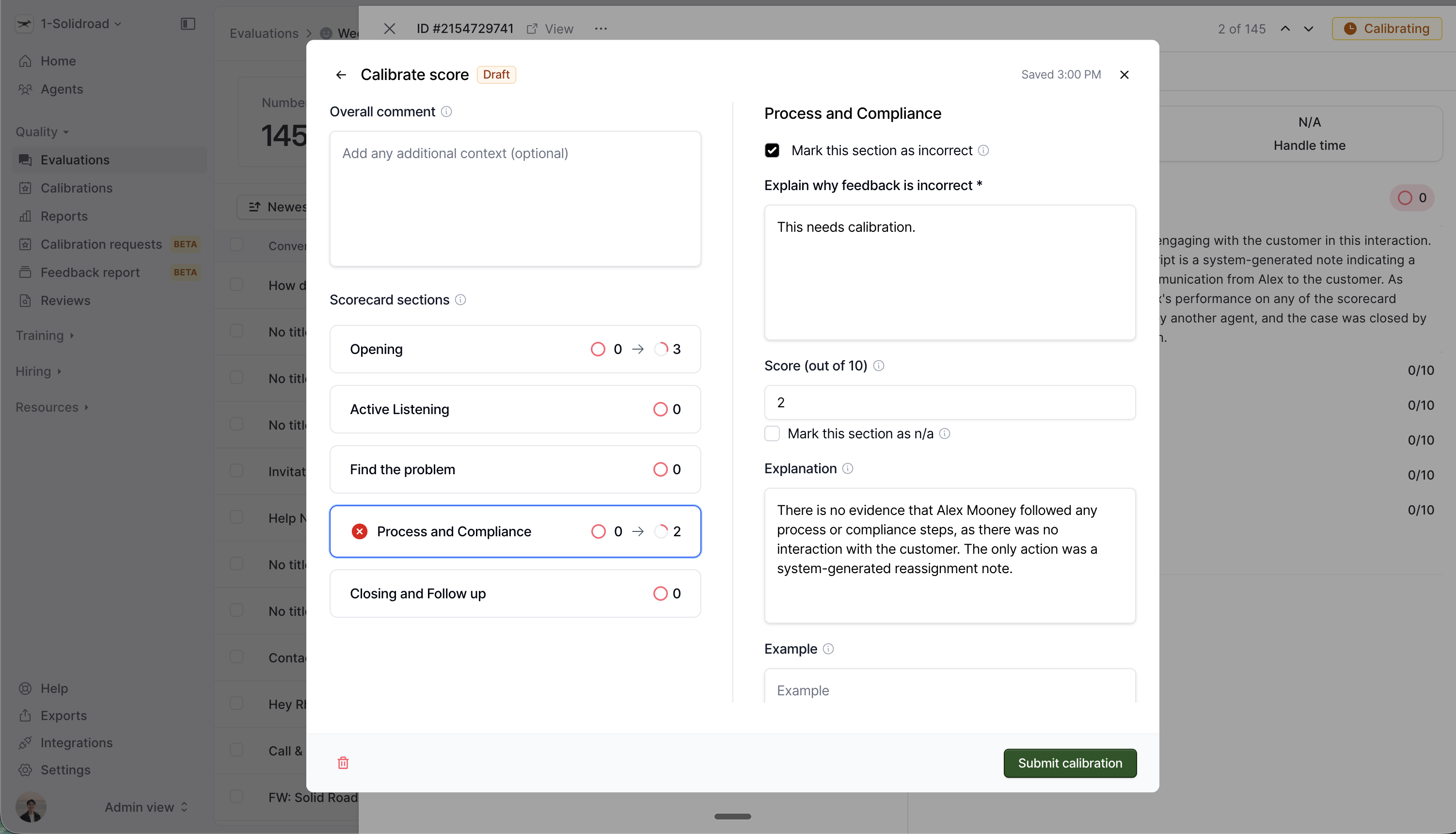
3. QAs complete calibration tasks
QAs receive calibration tasks and review the AI's scores for each assigned conversation. For each scorecard section, they mark the AI's score as either:
✅ Correct — the AI scored this section accurately
❌ Incorrect — the AI's score doesn't match the QA's judgement
Completed calibrations are submitted to the QA Manager for review.
4. QA Manager reviews calibrations
As QA Manager, you review submitted calibrations and accept or reject them.
The Testing dashboard tracks your progress:
Accuracy — how closely the AI's scoring matches your team's judgement, calculated across scorecard sections
Number of conversations — how many conversations have been calibrated so far
Accuracy trend — whether accuracy is improving as you refine the scorecard
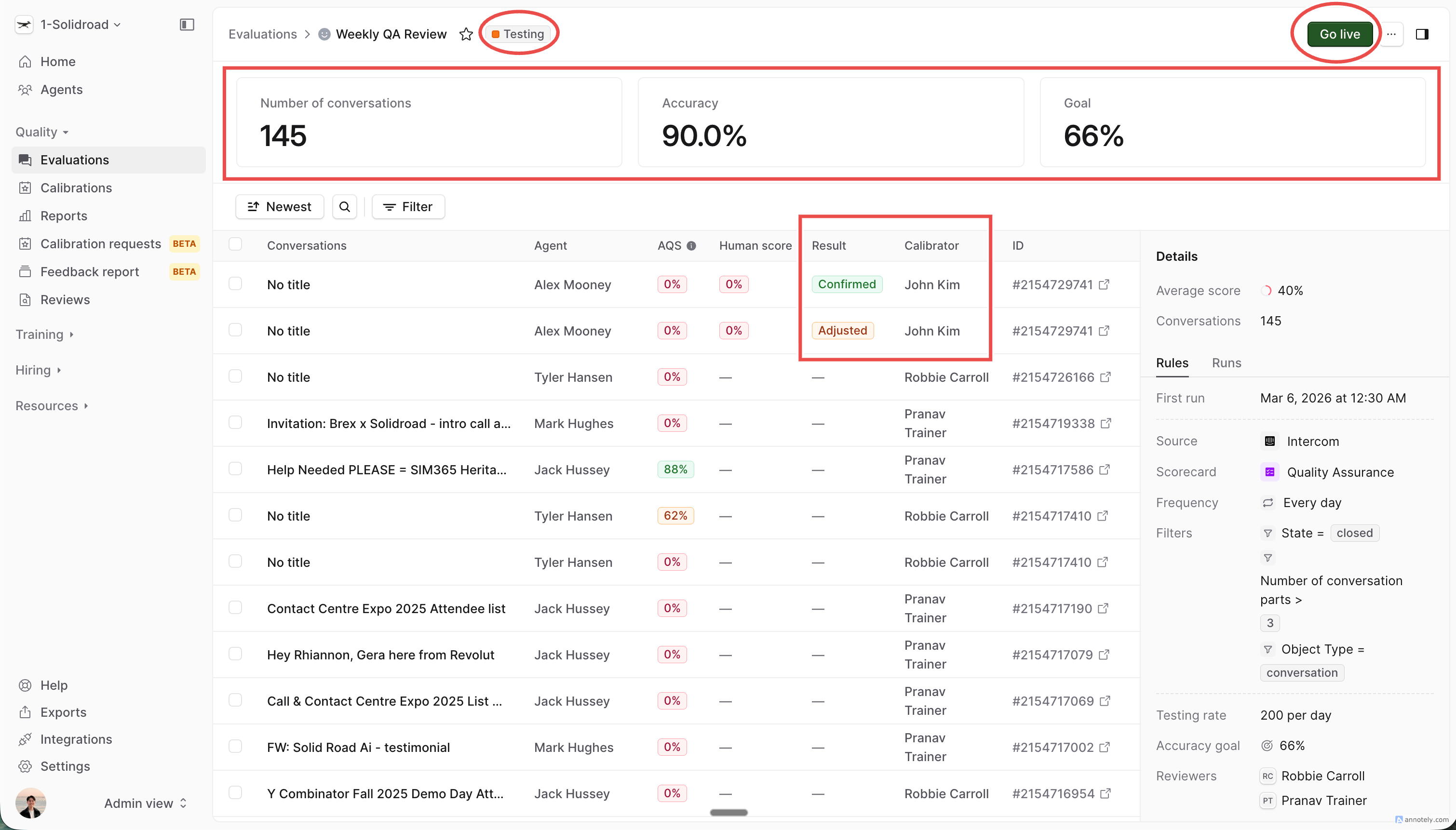
The accuracy card only appears once enough conversations have been calibrated to be statistically meaningful. Until then, the card shows "Calibrate N more to see accuracy" — telling you exactly how many more calibrations are needed.
5. Go live when you're ready
When you're confident the scorecard is performing well, click Go Live.
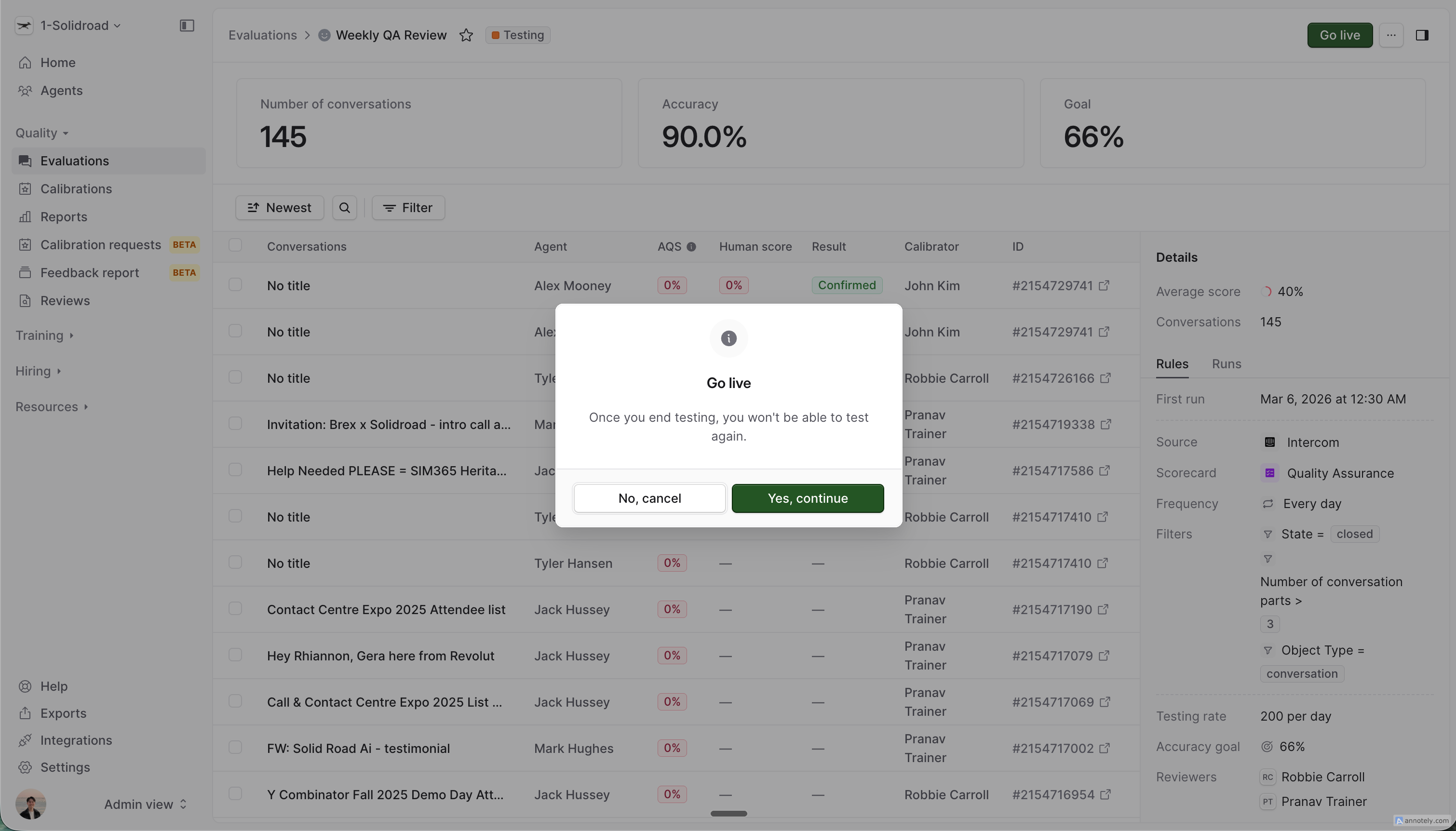
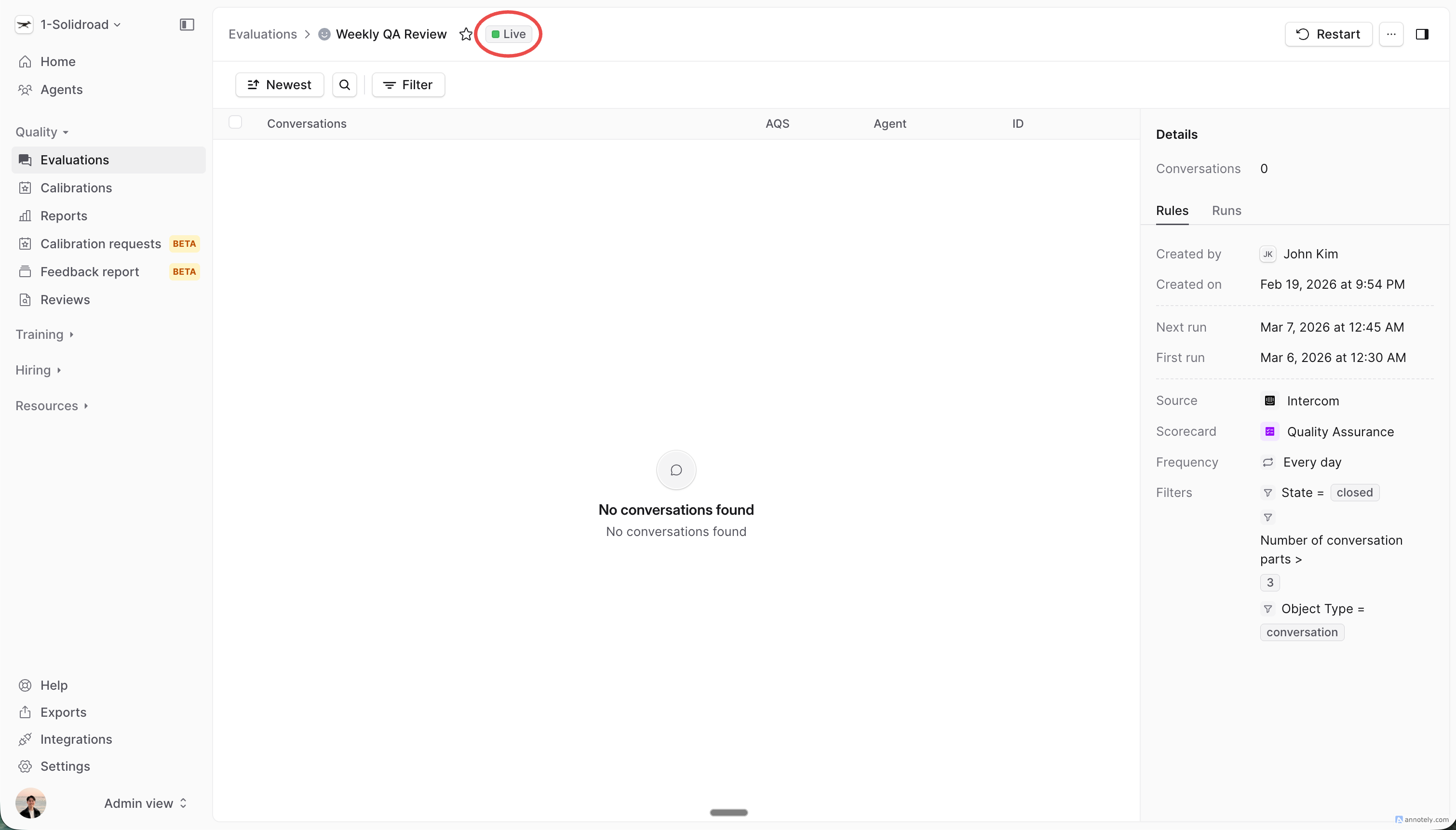
This transitions the evaluation from Testing to Live mode:
All future evaluation runs produce live results
Results appear in your QA reports and metrics
Testing-mode data remains accessible on the evaluation's Testing tab but is never included in reporting
⚠ Going live is a one-way action. Once an evaluation is in Live mode, it cannot be switched back to Testing. If you need to recalibrate, duplicate the evaluation and enable testing on the new copy.
Understanding accuracy
Accuracy is calculated section by section for each calibrated conversation, then averaged across all conversations. Think of it as a partial score — if the AI got most sections right on a conversation, that still counts positively toward your overall accuracy, rather than the whole conversation being marked wrong.
Who sees what
RoleWhat they see | |
QA Manager (Admin) | All calibrations from all QAs, plus aggregate accuracy metrics |
QA (Calibrator) | Only their own assigned calibrations, plus the same aggregate accuracy metrics |
Testing-mode evaluations never appear in QA Reporting. Once an evaluation is in Live mode, it becomes visible in QA Reporting to everyone with reporting access.
Tips for effective calibration
Write specific scorecard descriptions. The more precisely you define what "poor", "average", and "strong" look like, the more accurately the AI will score.
Calibrate across different conversation types. Include edge cases and difficult conversations — not just the easy ones.
Watch the accuracy trend. If accuracy stalls, check which sections are consistently wrong and revise those descriptions.
Set a realistic accuracy goal. 100% AI-human agreement is uncommon. An accuracy goal of 80–90% is a strong benchmark for most teams. Note that reaching your accuracy goal doesn't automatically move the evaluation to Live mode — you always choose when to go live by clicking Go Live.
Don't rush to go live. Testing mode continues until you click Go Live — there's no time pressure. Take the time to get your scorecard right.
FAQ
Can I enable testing on an existing live evaluation? No. Testing mode can only be enabled at creation time. To recalibrate a live evaluation, duplicate it and enable testing on the new copy.
What happens to testing data after I go live? Testing runs and their data are preserved and remain visible on the evaluation's Testing tab, but are excluded from all reporting.
Does the evaluation still run while in testing mode? Yes. The evaluation processes incoming conversations normally — those runs are stamped as "testing" so they're excluded from live reporting.
Can I edit the evaluation while it's in testing mode? Yes. You can adjust testing configuration (conversations per period, assigned QAs, accuracy goal) while in Testing mode. Testing configuration cannot be changed after going live.
What if I never go live? The evaluation continues in Testing mode indefinitely. No data appears in your reports. You can archive or delete the evaluation at any time.